AutoCreate
AutoCreate watches a project board for a status change and creates a QuickBooks Online invoice when an item hits your trigger. You prepare invoice data on the project board in monday.com, set the trigger status, and QuickBooks Complete creates the invoice in QuickBooks Online.
This guide walks through project board setup, AutoCreate configuration, running the automation, and verifying results.
Before you begin
- QuickBooks Complete is installed and you have opened it from your workspace folder.
- You are connected to monday.com and QuickBooks (see Getting started).
- You have (or will create) a QuickBooks Customers board and a Products & Services board, and they are syncing with QuickBooks. AutoCreate uses these for customer and line-item mapping.
- You have a project board where work is tracked and you want to create invoices from items on that board.
Project board setup and connections
Connect customers
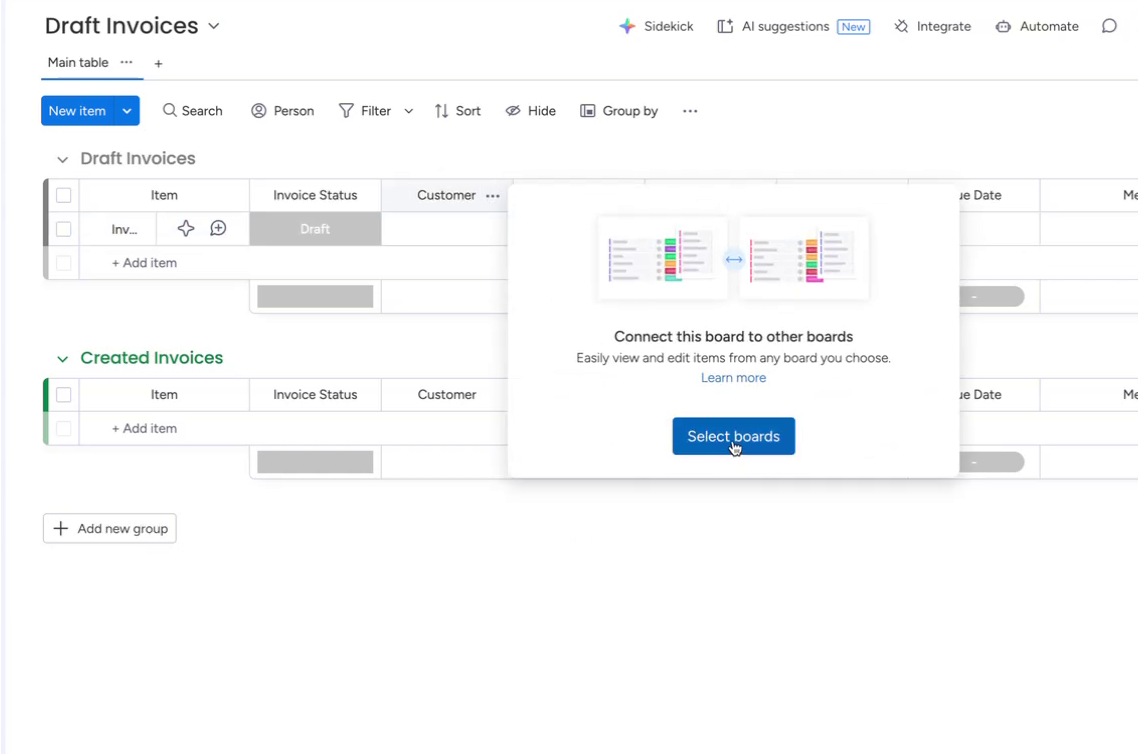
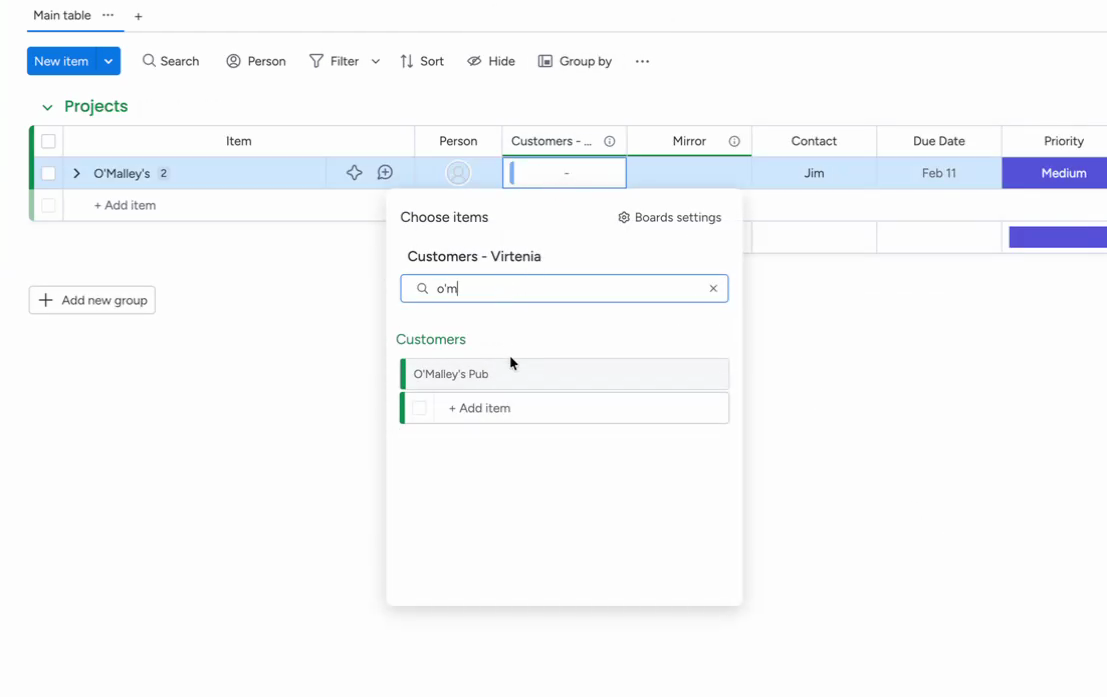
On your project board, add a Connect Boards column and link it to your QuickBooks Customers board. That column is where you pick the customer for each invoice. The link ensures the selected monday.com item maps to the correct QuickBooks customer.
In the column settings for that Connect Boards column, turn off Allow linking to multiple items so each invoice is tied to a single customer.
Add columns for fields you want to map
Add board columns for any invoice-level and line-item data you want on the invoice. AutoCreate can map the following (see Fields available for mapping for the full list). You don’t need every field — add columns only for what your workflow uses. Formula columns can be mapped when the formula result is appropriate for the QuickBooks field.
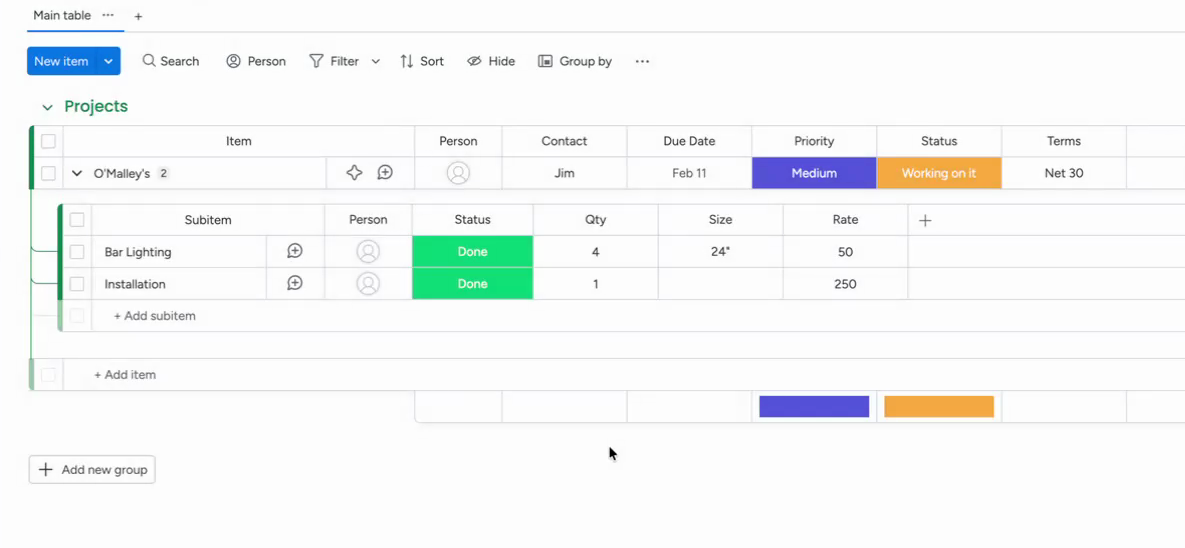
Invoice-level: Use columns on the top-level item.
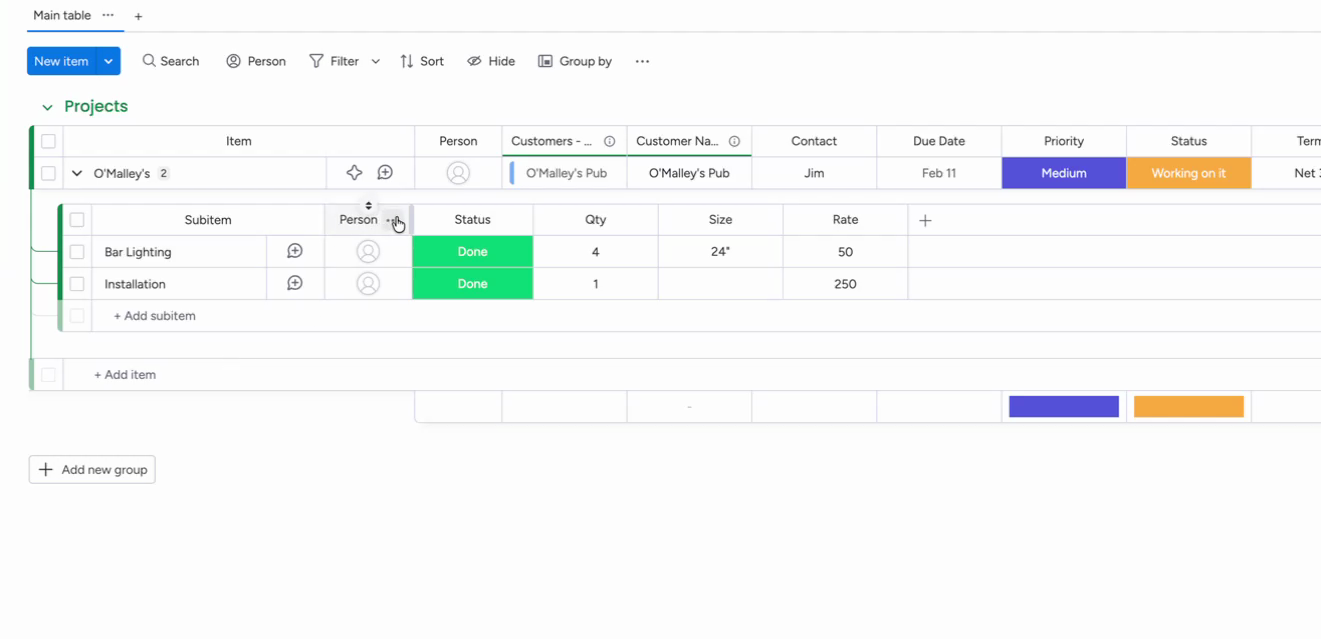
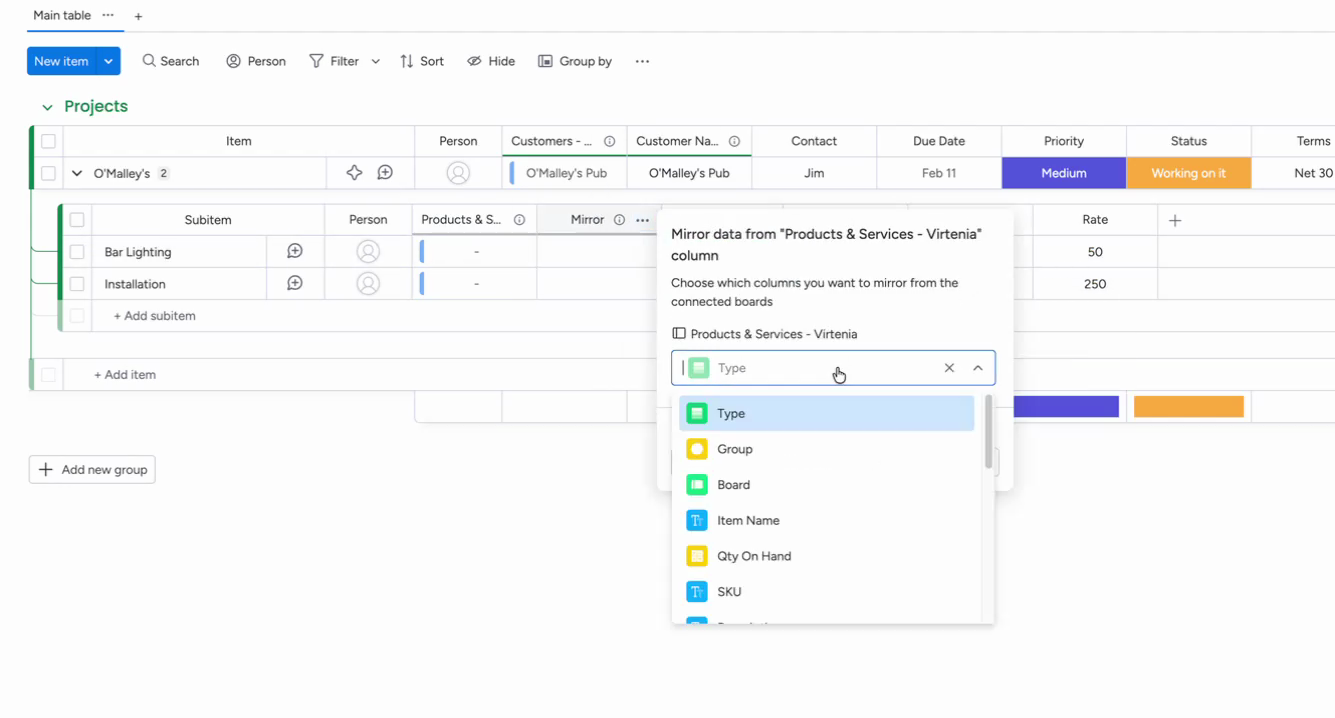
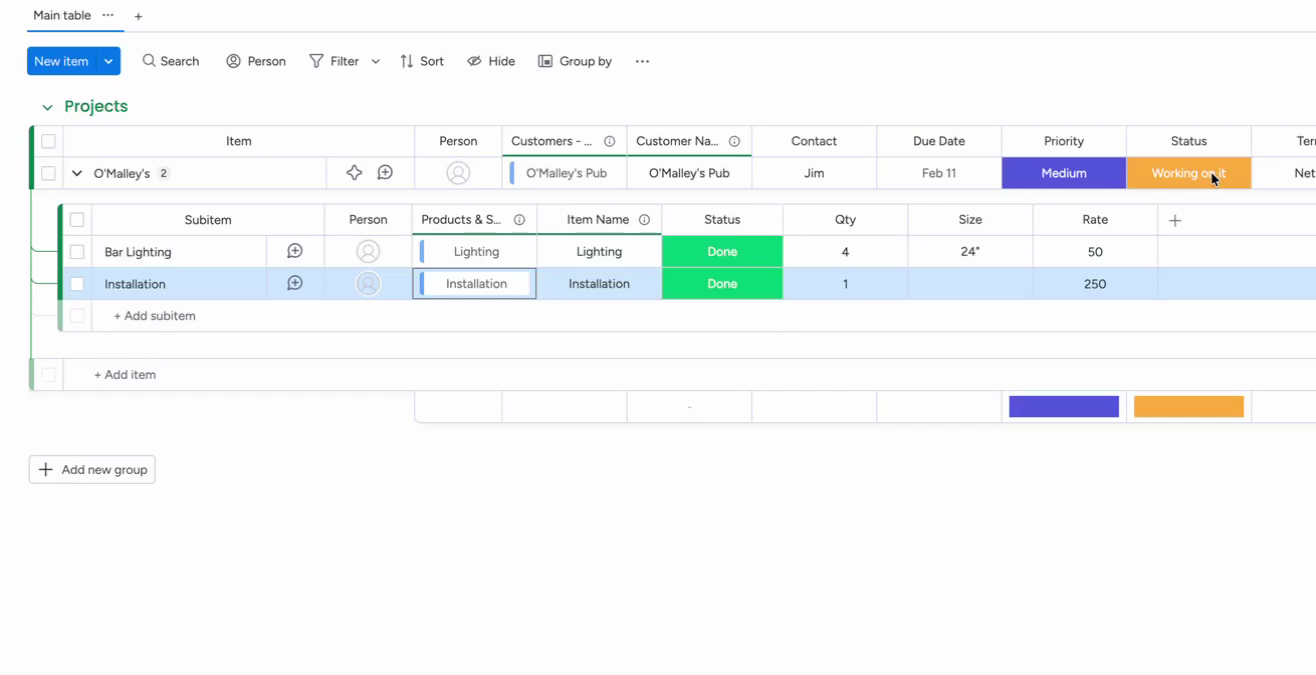
Line items: Use subitems. Add a Connect Boards column linked to your Products & Services board and a Mirror column for the QuickBooks Item Name, plus columns for quantity, rate, and any other line fields you need.
Status column for triggering
Ensure the project board has a status column that represents “ready to create invoice.” You will choose this column and one of its values as the AutoCreate trigger. For example, a status like Click to Generate or Create Invoice works well. After creation, the automation can move the item to a value like Created so you can see which invoices have already been created.
Configure AutoCreate
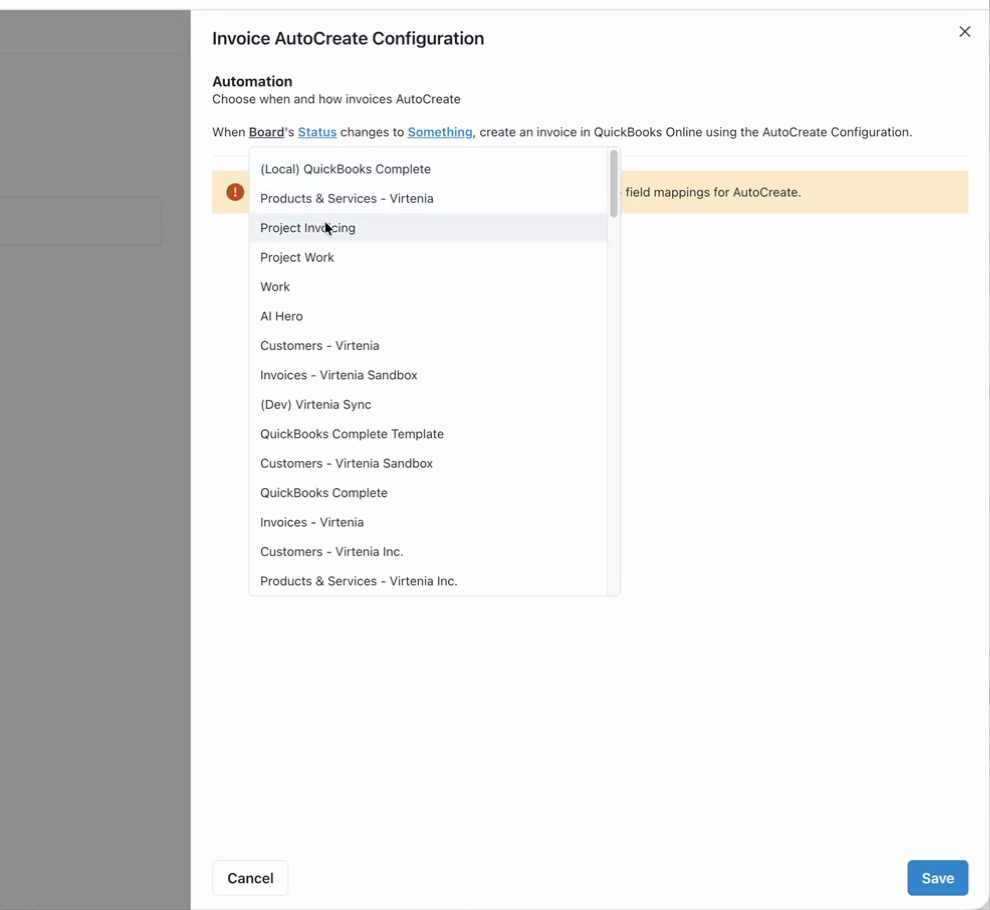
Open the QuickBooks Complete item, go to the AutoCreate tab, and click Configure AutoCreate. Each configuration has its own QuickBooks company selection, so different configurations can create invoices in different QuickBooks companies.
Fields available for mapping
Invoice-level fields (map from the main item):
- Customer Name (required) — from the Connect Boards column linked to QuickBooks Customers
- Invoice number — can be mapped if your QuickBooks company is set to use custom transaction numbers; otherwise QuickBooks generates the number automatically
- Terms Name
- Due Date
- Discount
- Discount Type
- Shipping
- Message On Invoice
- Message On Statement
- Allow ACH Payments
- Allow Credit Card Payments
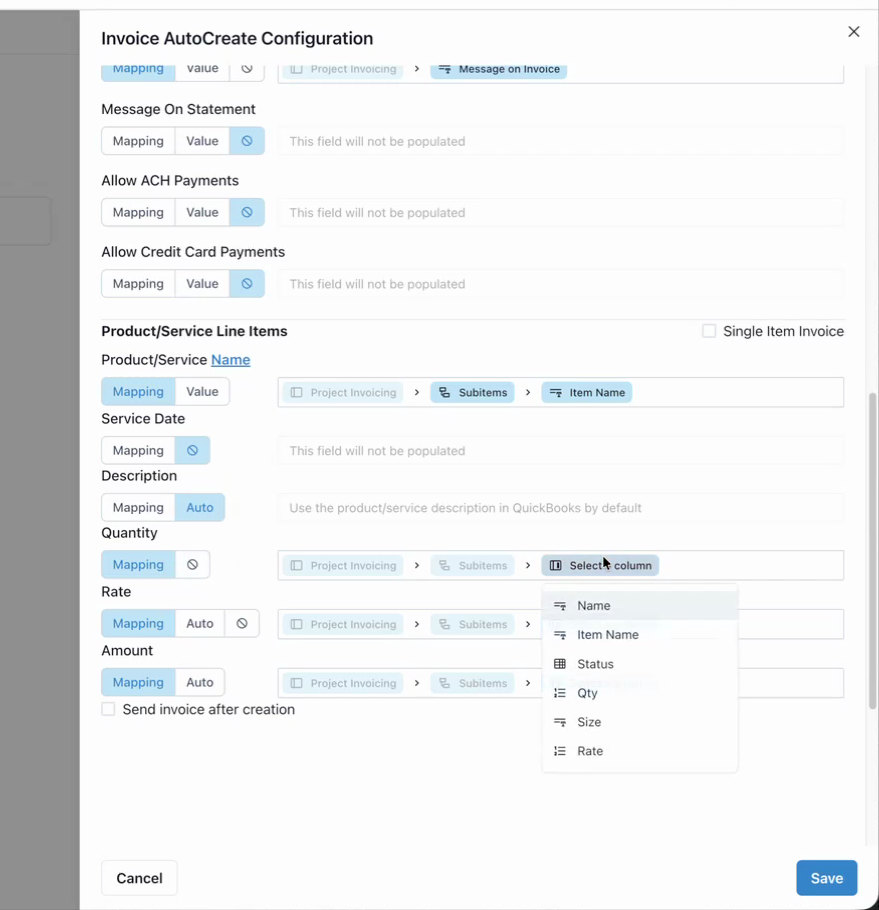
Product/Service line-item fields (map from subitems):
- Product/Service Name — from the Mirror/column that shows the QuickBooks Item Name
- Service Date
- Description
- Quantity
- Rate
- Amount
Other:
- Send invoice after creation — checkbox to send the invoice by email after it is created
Set the trigger
- Board — Select your project board.
- Status column — Select the column that holds the “ready to invoice” state (e.g. your main status column).
- Status value — Select the value that should trigger creation (e.g.
Click to Generate).
When an item on the project board moves to this column/value, AutoCreate will create an invoice for that item.
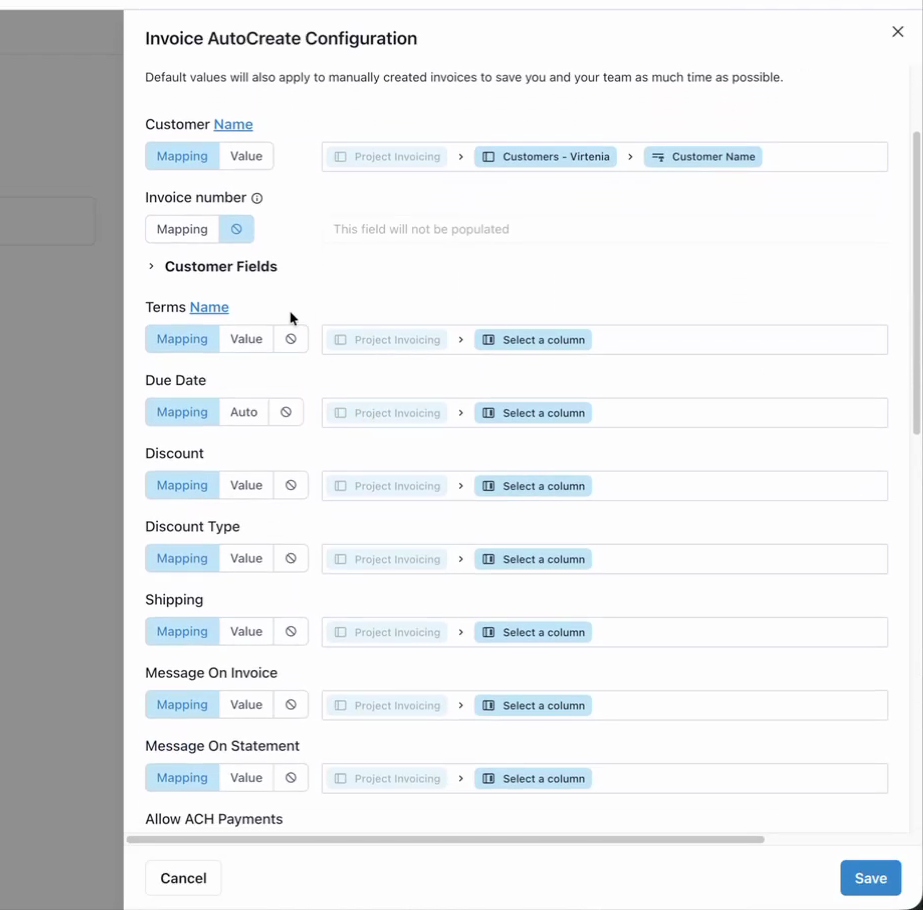
Map invoice-level data
In the Invoice Data section, map each invoice-level field (see Fields available for mapping) to the corresponding column on your project board. Customer Name is required.
Map product/service line items
In the Product/Service Line Items section, map each line-item field (see Fields available for mapping) to the corresponding subitem column. Save the configuration when done.
Generate an invoice
After configuration is saved:
- On the project board, create or open an item that represents the invoice.
- Set the customer in the Connect Boards column (linked to QuickBooks Customers).
- Fill in the invoice-level fields you mapped.
- Add subitems for each product or service line and fill in the line-item fields you mapped. Ensure each subitem is linked to the correct product or service from your Products & Services board so the Item Name is available.
- Set the item’s status to your trigger value (e.g. Click to Generate).
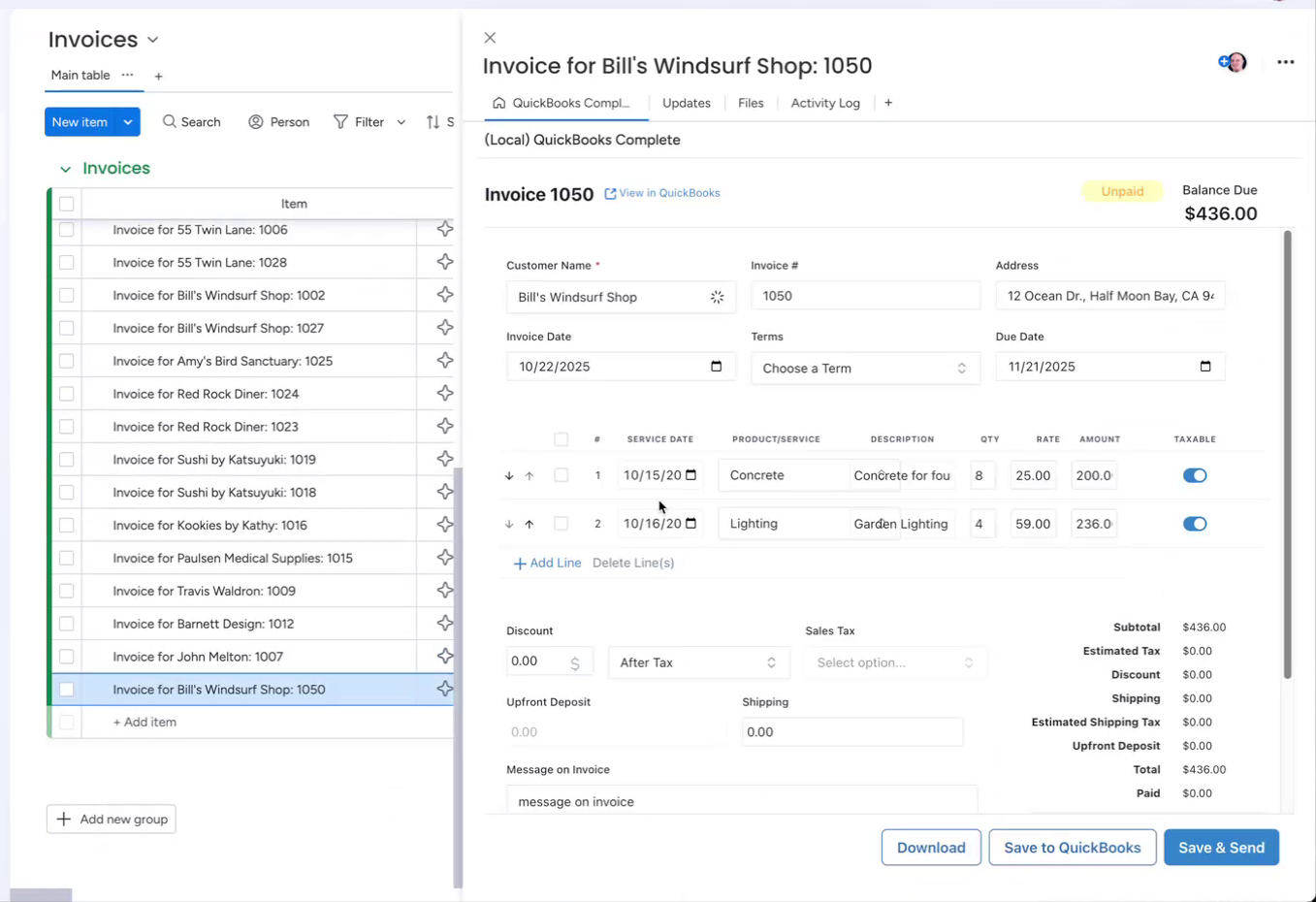
- AutoCreate runs for that item. When it finishes, the item typically moves to a “Created” (or similar) status, and the new invoice is visible in QuickBooks Online.
Verify the result
Check that the item on the project board shows the updated status (e.g. Created) and that the new invoice in QuickBooks Online has the correct mapped data and line items.
Troubleshooting
If the invoice is not created or data is wrong:
- Trigger — Confirm the trigger board, status column, and status value in Configure AutoCreate match the project board and column you are actually changing.
- Customer — Confirm the item has a customer selected in the Connect Boards column linked to QuickBooks Customers, and that the linked customer exists in QuickBooks.
- Line items — Confirm subitems are linked to the Products & Services board and that all mapped line-item fields point to the correct columns and contain valid values.
If the item stays on the trigger value and never moves to “Created,” check that no error message is shown in the app or on the board, and that the same item is not triggered repeatedly (e.g. by an automation that moves it back to the trigger value).
Demo video
See AutoCreate in action with project boards and QuickBooks.