Getting started
Installation
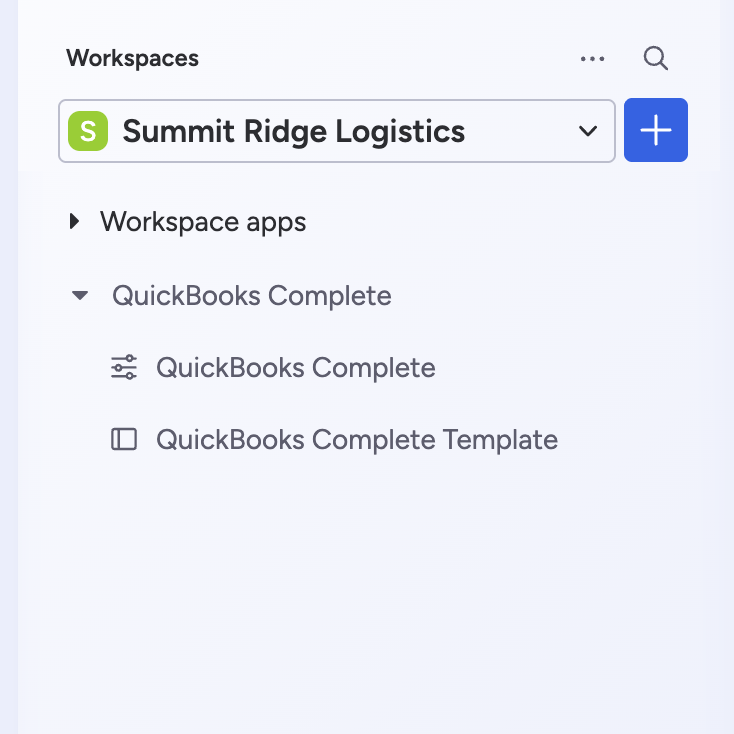
Install QuickBooks Complete through the monday Marketplace and select the workspace where you want it to run. During installation, the app creates two initial items in your workspace folder:
- QuickBooks Complete: The control panel for connections and sync settings.
- QuickBooks Complete Template board: Used when creating new sync boards. (Ignore this one. It is merely an implementation detail.)
Connect monday.com and QuickBooks
To begin, authorize both platforms:
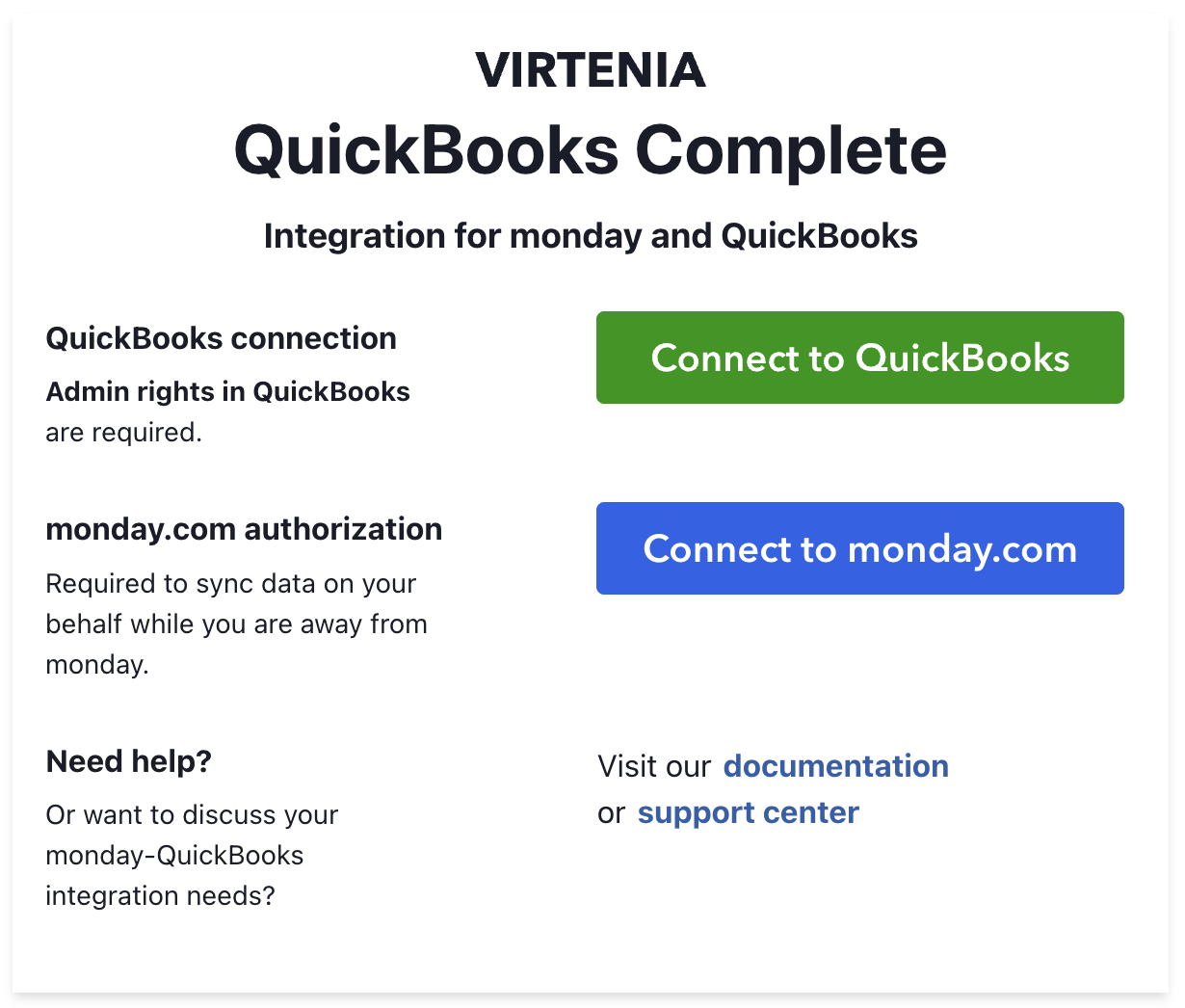
- Open the QuickBooks Complete item in your workspace folder.
- Click Connect to monday.com and approve the requested permissions. This gives the app the ability to sync data on your behalf, even when you are away from the app.
- Click Connect to QuickBooks.
- Sign in to Intuit and select your QuickBooks company to connect.
Re-installing after a canceled setup
If setup was canceled partway through, the app may be installed but not have created these items in your workspace.
To restart setup:
- Open the monday Marketplace within your monday account.
- Select Installed Apps.
- Find QuickBooks Complete and click View App.
- Click Use App to trigger the installation process again.
Older installations may still show historical names the app used, including Virtenia Sync, IQ, or Integration for QuickBooks.