Editing QuickBooks data from monday
QuickBooks Complete supports controlled updates from monday to QuickBooks, but not by editing data directly in the synced boards. This is because QuickBooks, by necessity, has numerous validations and other business rules that must be enforced during any edit.
QuickBooks data editing item view
Open any synced item (as shown in the screenshot) and select the QuickBooks Complete tab to access the live item view.
This item view pulls live data from QuickBooks. You can inspect transaction lines, addresses, tax details, and payment status, and directly edit most of the data, explained in the next section.
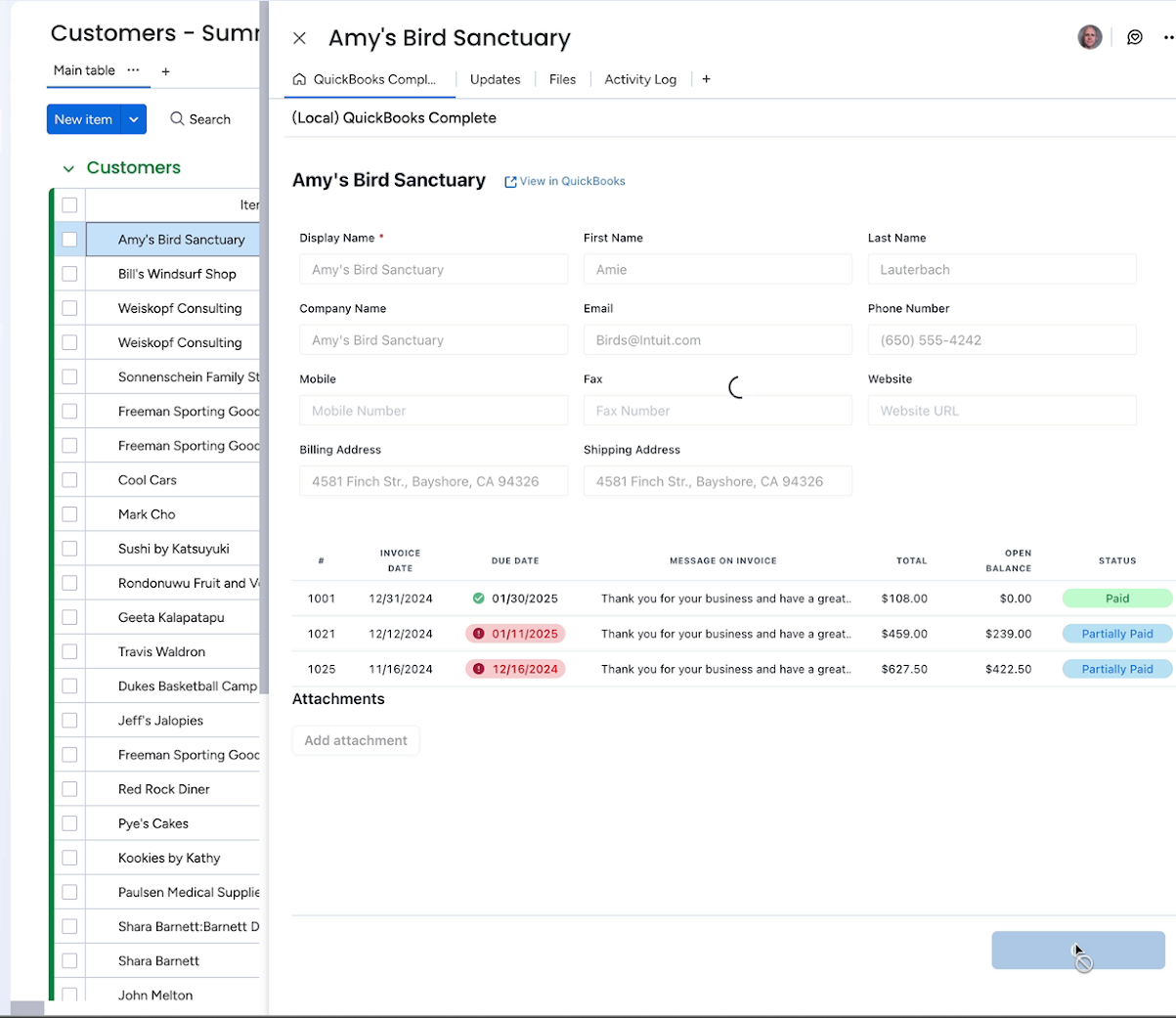
If you don’t see the item view on your board, you can add it using the usual monday.com controls. See the end of this page for a video demo of the process.
QuickBooks Complete also has a separate QuickBooks Customer Status item view for boards that are not synced by the app. See Item views for the differences between the available item views.
Editing data
Many fields can be edited directly from the item view: You can edit supported fields such as customer names and invoice line items, then click Save to QuickBooks to push those changes back to QuickBooks.
If you need to edit a field and it is not currently editable in Item view, go to our Support page so we can help.
Shortly thereafter, your monday boards for the changed and related data will be updated via the normal sync mechanism. The item view works this way rather than directly saving changes to your board because QuickBooks can apply its rules and calculations. For example, if you edit an invoice using the item view and that changes the outstanding total on the invoice, you will see changes shortly synced back to both your invoices board and your customer board, reflecting the updated amount due.
Creating new items
To create a new QuickBooks record from monday, add a new (empty) item on the relevant synced board, then open that item’s QuickBooks Complete item view (the same edit experience used for existing records).
Enter the fields you need, then click Save to QuickBooks. The app creates the record in QuickBooks, applies QuickBooks rules and validations there, and the normal sync then updates your monday board with the saved data (including any fields QuickBooks fills in or adjusts).
Validation and save errors
All normal QuickBooks validation and business rules still apply when saving from monday. If a value fails QuickBooks validation, the save will fail and you will see an error returned from QuickBooks.
In some cases, QuickBooks error messages are not very clear, but they still indicate why QuickBooks rejected the change. Feel free to go to our Support page and we can help investigate why QuickBooks is rejecting your change.
Billable expense lines
Expense item views include a Billable checkbox for item- and account-based lines. Select a customer or project on the line before marking it billable.
A line that QuickBooks reports as Has Been Billed remains checked and cannot be changed from the item view. This protects the relationship with the resulting customer transaction in QuickBooks.
Class and location
Location is supported on bills, expenses, purchase orders, invoices, and estimates. Class and Location controls appear only when the corresponding tracking feature is enabled in QuickBooks. Supported values can be changed or cleared in the item view.
Add the item view if it is missing (optional)
Older installations of the app may be missing the item view on boards, even newly created boards. To add the item view yourself, see the video below.