Dashboard widgets
QuickBooks Complete includes monday dashboard widgets that show live QuickBooks information on a monday.com dashboard.
These are monday.com dashboard widgets. They are not synced boards, and they do not create monday board items or columns for the values they display. Each widget reads from QuickBooks when it loads and refreshes periodically.
Available widgets
QuickBooks account balance
The QuickBooks Account Balance widget shows the current balance for one selected QuickBooks balance sheet account.
Use it for accounts where a dashboard needs a single live number, such as a bank account, credit card, loan, equity account, or another asset, liability, or equity account.
A monday admin, or another user with widget configuration rights, chooses:
- The QuickBooks company.
- The QuickBooks account to display.
If you change the QuickBooks company, the widget tries to keep the same account selection by matching the account name in the newly selected company. If no matching account is found, choose the account again.
QuickBooks accounts receivable
The QuickBooks Accounts Receivable widget shows open customer receivables by aging bucket.
It displays:
- Total open receivables.
- Overdue receivables.
- Current receivables.
- Aging buckets from the QuickBooks receivables report.
- The largest open customer balances.
This widget is useful on dashboards for collections, customer account follow-up, or finance overview reporting.
QuickBooks accounts payable
The QuickBooks Accounts Payable widget shows open vendor payables by aging bucket.
It displays:
- Total open payables.
- Overdue payables.
- Current payables.
- Aging buckets from the QuickBooks payables report.
- The largest open vendor balances.
This widget is useful on dashboards for cash planning, vendor payment review, or finance overview reporting.
QuickBooks profitability
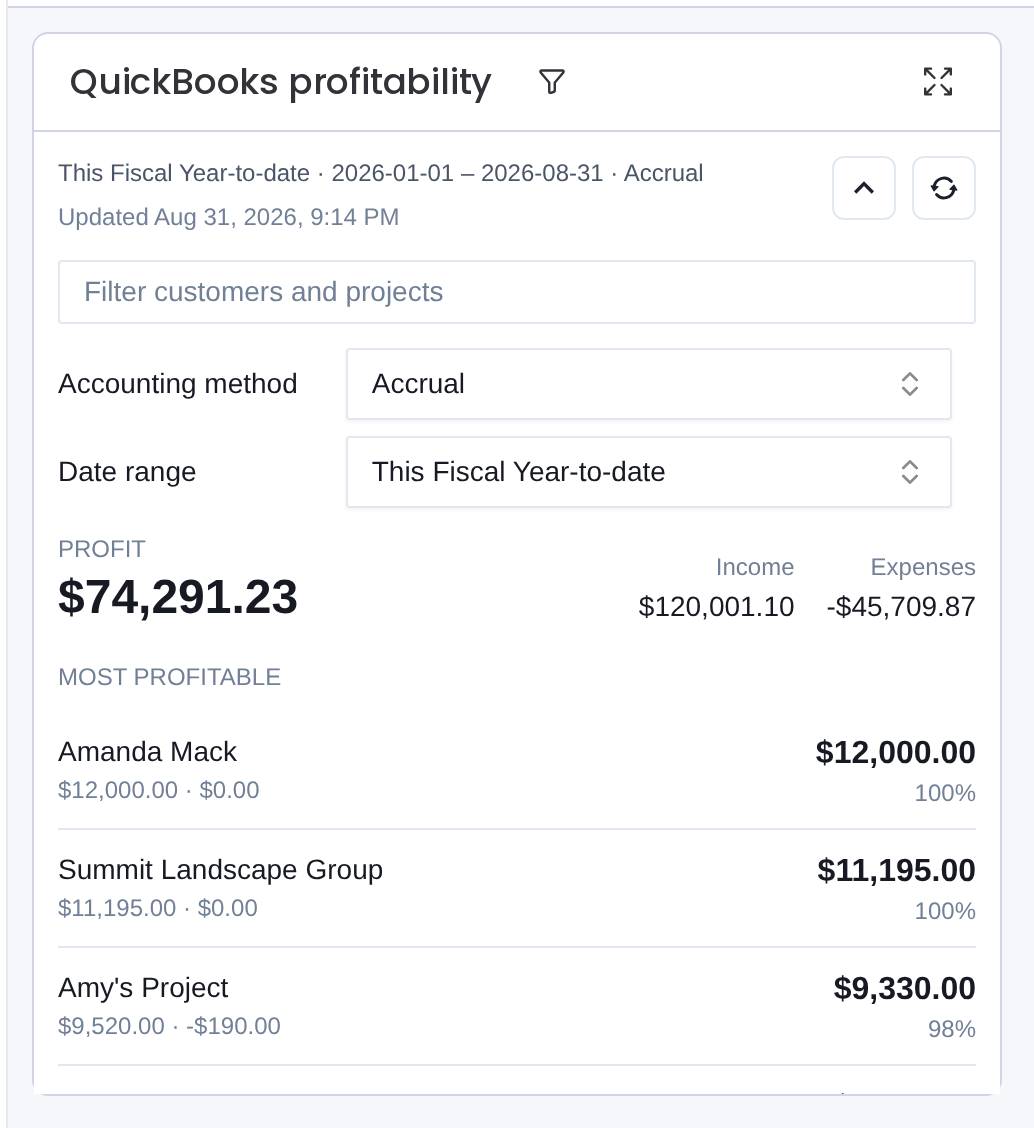
The QuickBooks Profitability widget summarizes income, expenses, profit, and margin by customer or project. It highlights the most and least profitable results for the selected QuickBooks company, date range, and cash or accrual accounting method.
Add a widget to a dashboard
Add these widgets using the normal monday.com dashboard widget controls.
- Open the monday.com dashboard where you want the QuickBooks information to appear.
- Add a new widget.
- Choose one of the QuickBooks Complete widgets listed above.
- If prompted, choose the QuickBooks company to use.
- For the account balance widget, choose the QuickBooks account to display.
The profitability widget also offers date-range, accounting-method, and optional customer-or-project filtering settings.
Refresh behavior
Dashboard widgets read live data from QuickBooks. They refresh automatically about every 15 minutes and also include a manual refresh control.
Because the widgets read from QuickBooks directly, the numbers shown in the widgets are not limited to data you have synced into monday boards. For example, the accounts receivable widget can be useful even if you have not synced an Invoices board into monday.
Permissions
QuickBooks Complete user rights apply separately for each QuickBooks company.
To see dashboard widget data, a non-admin monday user needs the Use financial widgets right for the QuickBooks company.
To configure widget settings, such as the selected company or selected account, a non-admin monday user needs the Configure financial widgets right.
monday admins have access to configure and use the widgets for QuickBooks companies.
If a user can see the dashboard but the widget shows an access message, ask a monday admin to review that user’s QuickBooks Complete rights.
Notes and limitations
The widgets show QuickBooks data inside monday, but they do not write those displayed values into monday board columns. Use syncing data when you need QuickBooks records mirrored into monday boards.
QuickBooks reports and accounts control the values shown. If a widget cannot load because QuickBooks is disconnected, the selected account was removed, or QuickBooks is temporarily unavailable, the widget shows a message instead of stale or guessed data.