Automations and workflows
QuickBooks Complete includes actions that you can use in monday automations and workflows to create QuickBooks records from monday items. You decide what starts the automation or workflow, map monday data to QuickBooks, and add the resulting action wherever it belongs in the process.
For example, a status change can create an invoice, a new CRM item can create a customer, or an approved purchase request can create a purchase order.
How the pieces fit together
Creating a QuickBooks record from a monday automation or workflow has two parts:
- In the QuickBooks Complete control panel, create a mapping configuration that describes how monday board data becomes QuickBooks data.
- Add the matching QuickBooks Complete action to an automation or workflow and select the mapping configuration.
The mapping configuration does not choose the trigger. The monday automation or workflow controls when the action runs, so you can use any compatible monday trigger and add other actions before or after the QuickBooks action.
Supported QuickBooks data types
QuickBooks Complete actions can create the QuickBooks data types supported by QuickBooks Complete. The fields and line-item choices shown in a mapping configuration depend on the selected data type.
Before you begin
- Connect monday and the QuickBooks company as described in Getting started.
- Prepare the monday board and columns that will supply the QuickBooks data.
- Ask a monday admin for the Manage automations right for the QuickBooks company if you do not already have it. See User rights.
QuickBooks applies its normal required-field rules and validations when the action runs. Make sure the board can supply the values required for the kind of record you are creating.
Create a mapping configuration
-
Open the QuickBooks Complete control panel.
-
Select Automations.
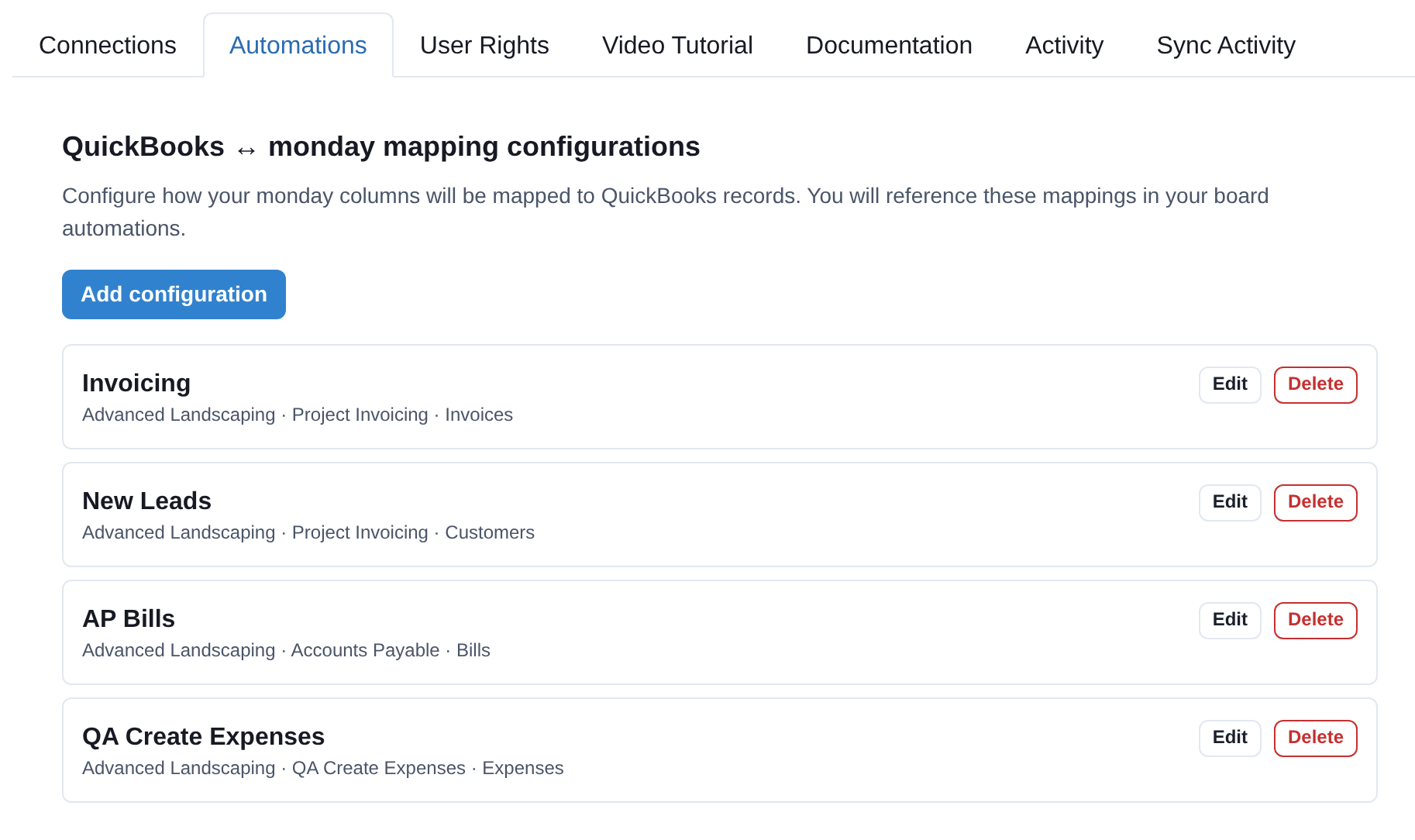
- Click Add configuration.

-
Select the QuickBooks company if more than one is available.
-
Search for and select the monday board where the action will run.
-
Select the QuickBooks data type to create.
-
Enter a recognizable label. This label appears when you configure the QuickBooks Complete action.
The board and QuickBooks data type cannot be changed after the configuration is created. Create another configuration if you need a different combination.
Map fields
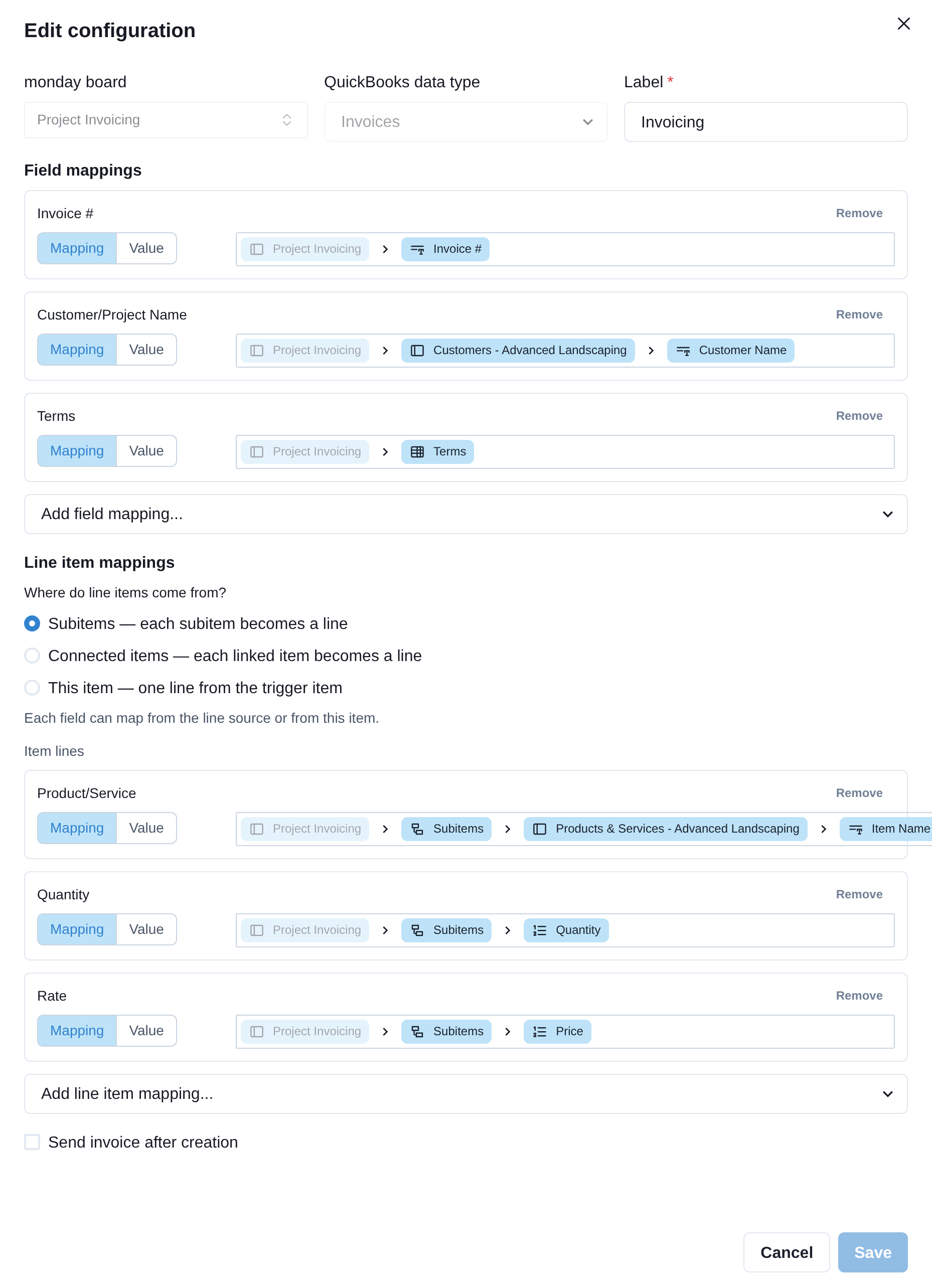
Add each QuickBooks field that the action needs. For each field, choose one of these sources:
- Mapping reads the value from a monday column.
- Value uses the same fixed value every time the action runs.
Boolean fixed values use a checkbox. Other fixed values use the available value control.
Read from related items
A mapping starts on the configured monday board. It can read a column on that item or continue through a Connect Boards or Subitems column before selecting the final value. Paths can contain up to five segments, which supports board structures that keep customers, projects, products, or other data on related boards.
Connect Boards columns used in a mapping must point to one board. Formula and Mirror columns can be used when their result is appropriate for the destination QuickBooks field.
If a mapped Connect Boards step has no linked item, QuickBooks Complete omits that mapped field. QuickBooks validation still applies if the field is required. If the step has more than one linked item, the action reports an error because a field mapping path can follow only one item.
Map addresses
QuickBooks address fields are mapped in separate parts: address line 1, address line 2, city, state, ZIP, and country. Each part can come from a different monday column or use a fixed value.
Configure line items
For QuickBooks data types with lines, choose where those lines come from:
- This item creates one line from the item that triggered the action.
- Subitems creates one line for each subitem.
- Connected items creates one line for each item in the selected Connect Boards column.
For subitems and connected items, a line field can read from the nested or connected item or from the parent item. A Connect Boards line source must point to exactly one board.
Map the identifying field required for the line type, such as Product/Service for an item line, Account for an account line, or Bill for a bill-payment line. Then map the quantity, rate, amount, description, customer, or other line fields needed by the action.
Send an invoice or estimate after creation
Invoice and estimate configurations offer Send invoice after creation or Send estimate after creation. When selected, QuickBooks emails the new transaction after it is created.
The mapped data must provide a valid customer billing email. If QuickBooks cannot resolve an email address, creation or sending reports an error to the action.
Save the configuration
Click Save after the mapping is complete. If something is incomplete, the panel highlights the affected rows and explains what must be corrected.
Only configurations for the selected board and the action’s QuickBooks data type appear in the configuration selector.
Add the action to an automation
-
Open the configured monday board and create or edit a monday automation.
-
Choose the trigger and any conditions.
-
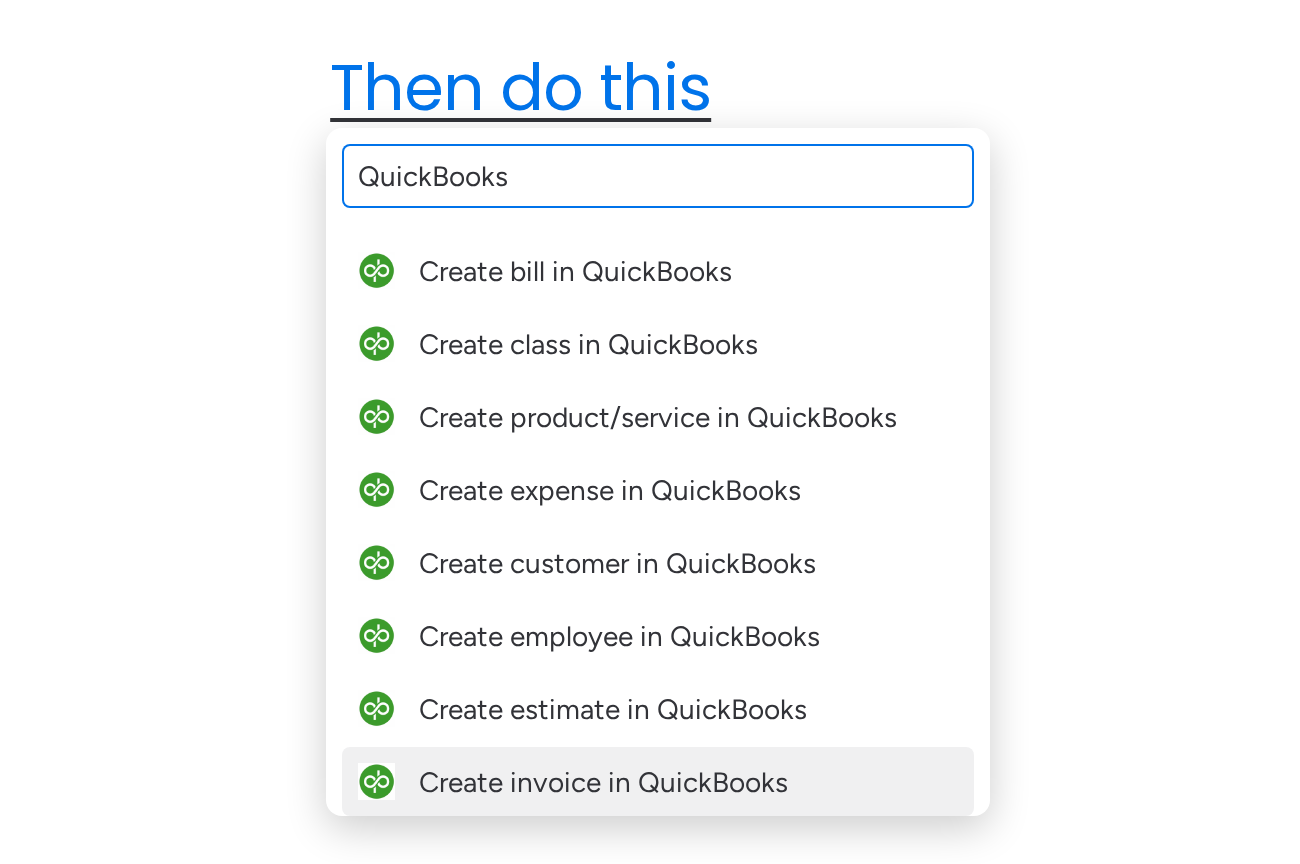
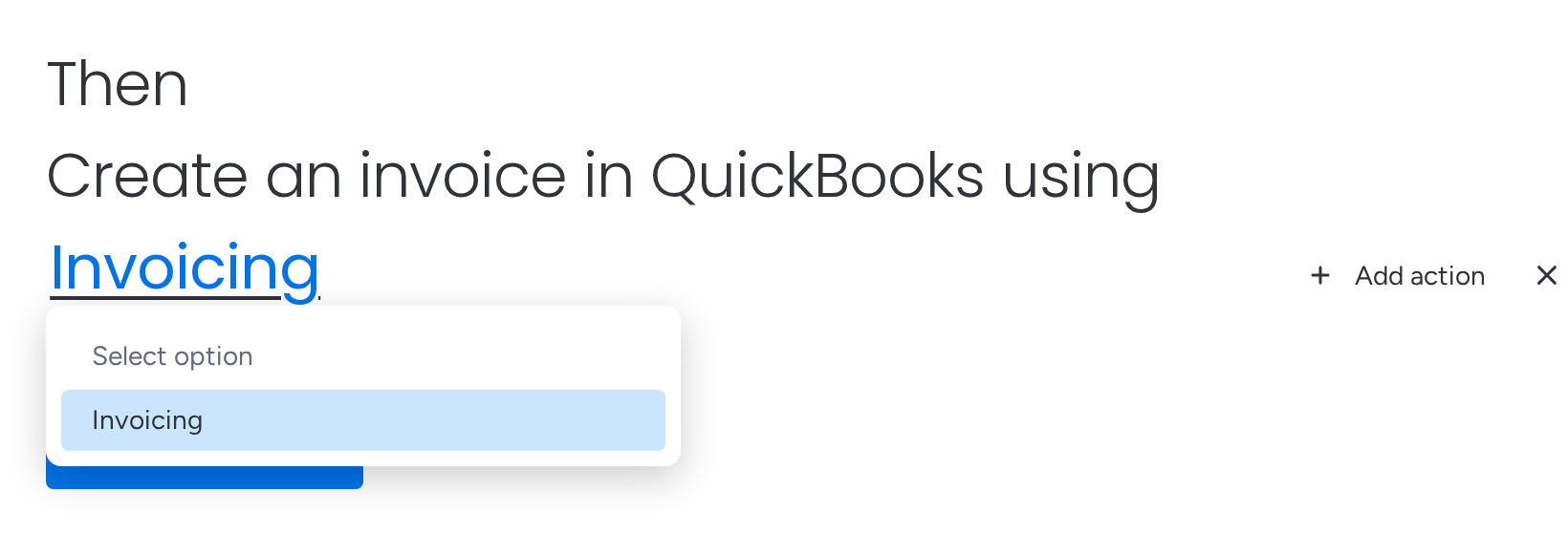
Add the QuickBooks Complete action named Create [data type] in QuickBooks.
- Select the mapping configuration by its label.
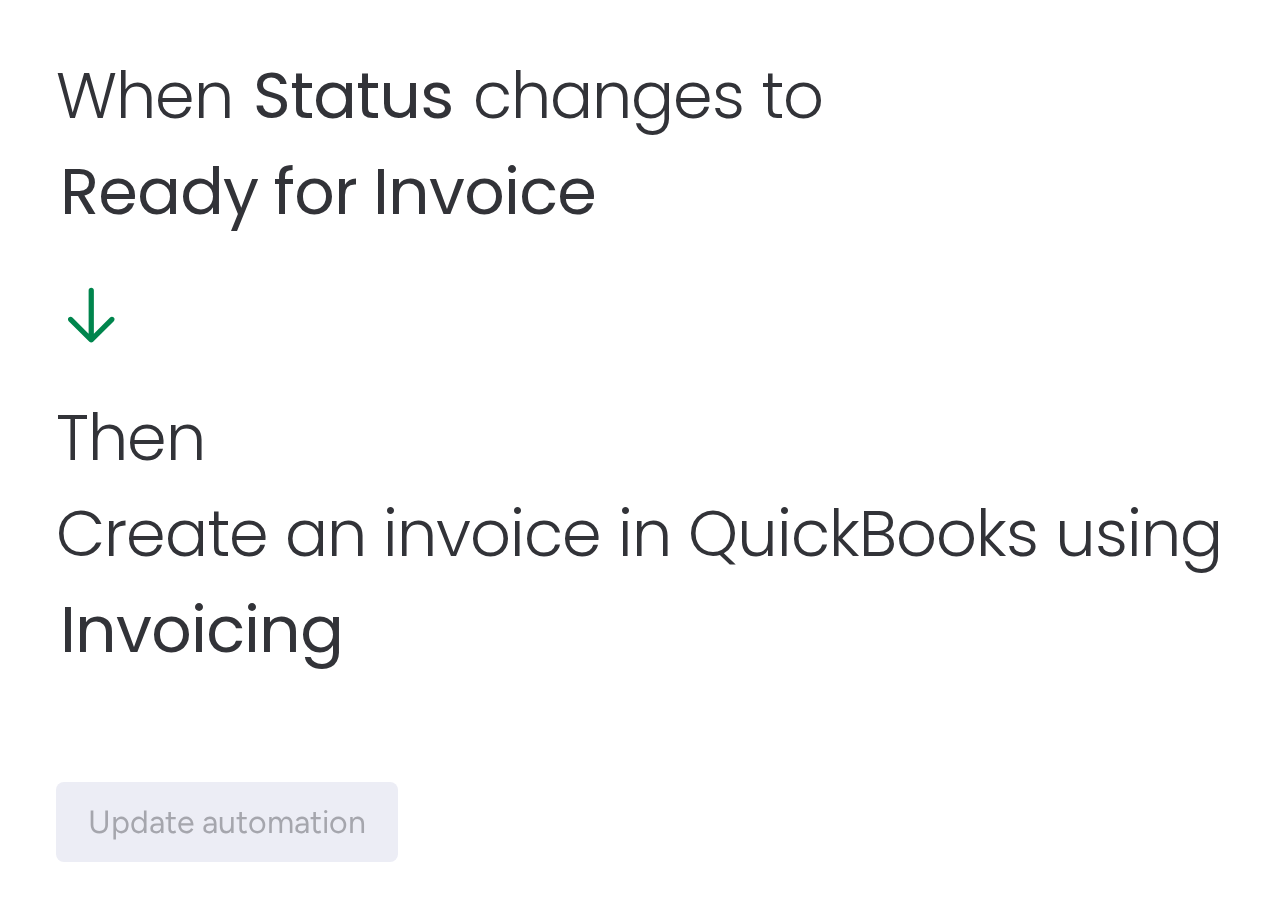
- Save and enable the monday automation.
Automation demo
Add the action to a workflow
- Create or edit a monday workflow.
- Choose the trigger and add any preceding steps.
- Add the QuickBooks Complete action named Create [data type] in QuickBooks.
- Select the configured monday board.
- Select the item from the trigger or a preceding step.
- Select the mapping configuration by its label.
- Add any remaining steps and publish the workflow.
Workflow demo
Test and monitor the action
Test with an item that contains valid values for every required mapping. After the automation or workflow runs:
- Check the monday automation result or workflow run history.
- Confirm that the record was created in the intended QuickBooks company.
- Use Sync Activity in the control panel to find the record-level operation. See Monitoring.
If the action fails, review the reported QuickBooks validation message, confirm that the mapping configuration belongs to the same board, and check that related items and required reference values still exist.
Legacy AutoCreate
AutoCreate is deprecated. See Deprecated features for information about existing configurations and replacing them.